Switching

Switch Like a Studio.
Preview First, Then On Air.

Two big screens show what is next and what is on air, so the operator always knows what the film will show.

Two Screens

Always Know What the Film Shows

Two big screens show what is next and what is on air, so the operator always knows what the film will show.

  • Preview is green, Program is red. Line up the next shot first, then send it.
  • Cut or Fade. One press of Space cuts at once; Enter fades smoothly.
  • Double-click goes straight on air. The quick way when things move fast.
  • Number keys pick the camera. Press 1 to 9, then Space.
PREVIEW · NEXT
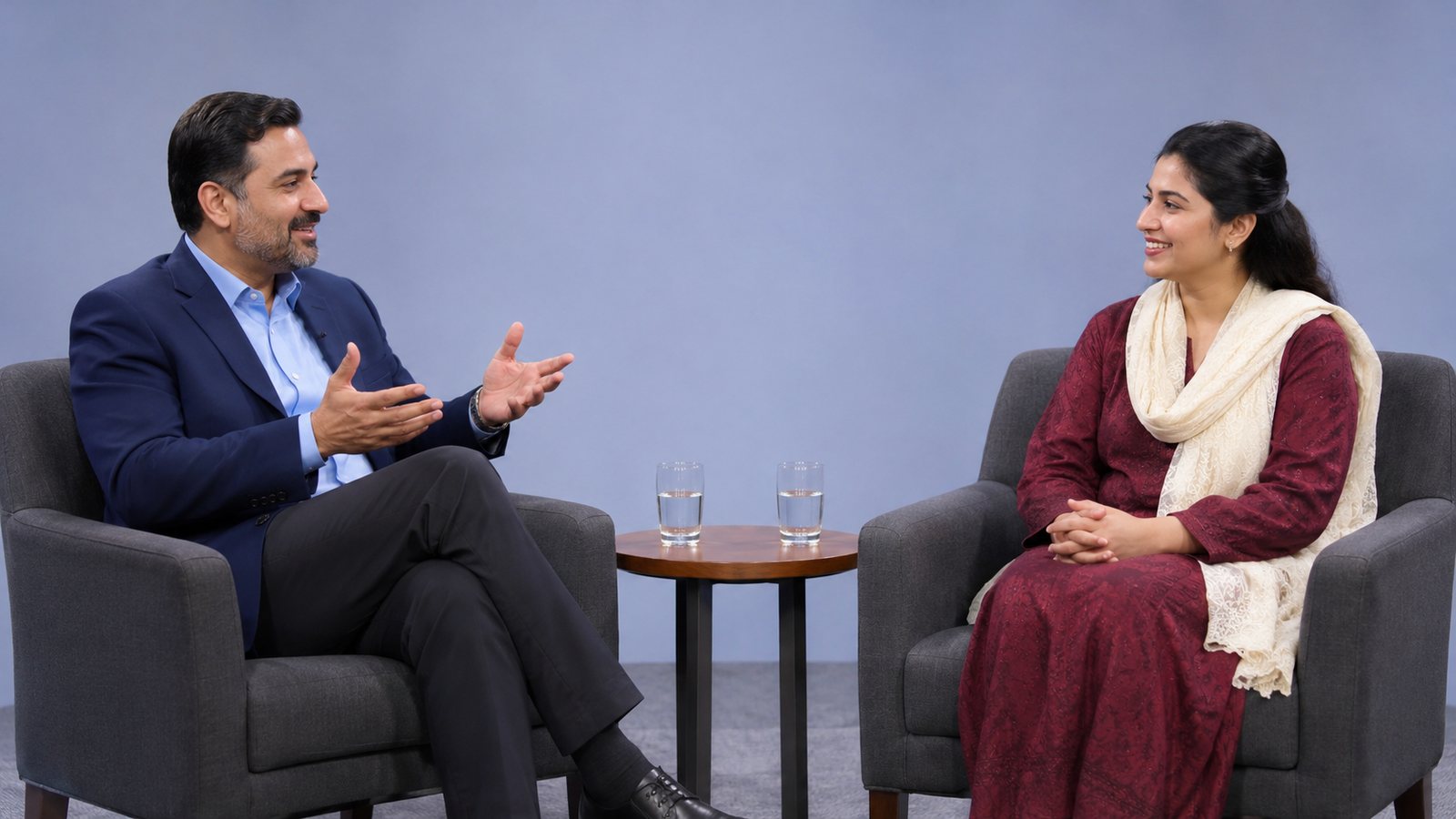
Preview: the wide shot
PROGRAM · ON AIR
Program: the guest
CUT SpaceFADE Enter
Camera 1: Wide
1Wide
Camera 2: Host
2Host
Camera 3: Guest
3Guest
Camera 4: Guest Angle
4Guest Angle
Ready-Made Shots

More Than One Camera at a Time

One press builds the shot from the cameras you already have.

Split

Two cameras side by side, for a speaker and a translator or two guests.

Picture in Picture

One camera fills the screen and a second sits in the corner.

Panel

A row of speakers together, each from their own camera.

Four

Four cameras at once, each in its own quarter of the screen.

Free for 14 Days

Use everything during your trial. After that, carry on with a membership or an access code.

Sign in first, then enter your code inside the studio. See pricing.